

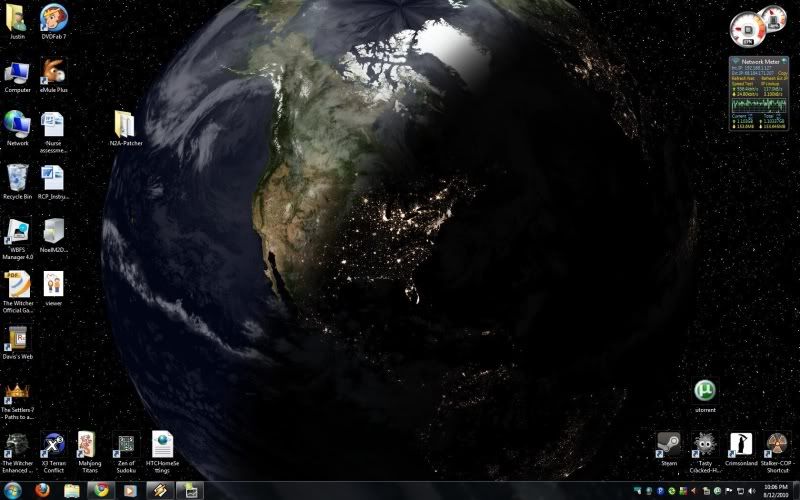
It doesn't look like much this small, but the actual size version is neat. You could just steal my image (srsly, go for it if you don't mine that photobucket makes stuff small), but it's actually really easy to do this...if you have photoshop or gimp or something like that. Here are the (mac-specific, idiot-proof) instructions for photoshop:
Open a blank layer
Go to layer/new. Name your layer "stars" or something else that will help you remember what it is.
Make the layer black
With the foreground color set to black and the background color set to white (this is the default, so you shouldn't have to mess with it), press option + delete, and it magically makes your background black. Cool.
Make some noise
Go up to all the menus at the top. Choose filter/noise/add noise. Change the amount to what you think looks like pretty stars. This will differ from monitor to monitor, but for J's 1680x1050, I went with 100%. Also, select "Gaussian" under distribution and monochromatic. If it looks like TV static, you're headed in the right direction.
Blur the noise
Now back to the menu, and this time choose filter/blur/gaussian blur. Set the radius to .3 or .2 pixels.
Add a layer that adjusts the levels
Hold down option while clicking the new adjustment layer icon. It's the one that looks like a half-black/half-white circle at the bottom of the tab with the little thumbnail of your stars (or whatever you named it) layer. A little menu will pop up, and you'll click "levels." Now a little window will pop up, and you'll check a box that says "Use Previous Layer to [Blah Blah Blah Blah]." Now click "OK."
Get rid of some noise
Now you'll see a little box with a black and white blob and some slider things. What you're going to do now is move those sliders around until you make something that looks like stars. Start by moving the white one a little to the left and the black one almost all the way to the right. This should give you something to go by.
Wrap it up
You're done! Save and enjoy!
You too can triumph over google image search's letdowns and end up with something like this (the finished product in use):

No comments:
Post a Comment